For this weeks task, the challenge was to create a panorama on Photoshop. Of course there is the simple way of creating a panorama on your phone by selecting the panorama option on the camera, however this week I have learnt of an interesting, more intricate manual way of creating a panorama.
Step One: Take some photos
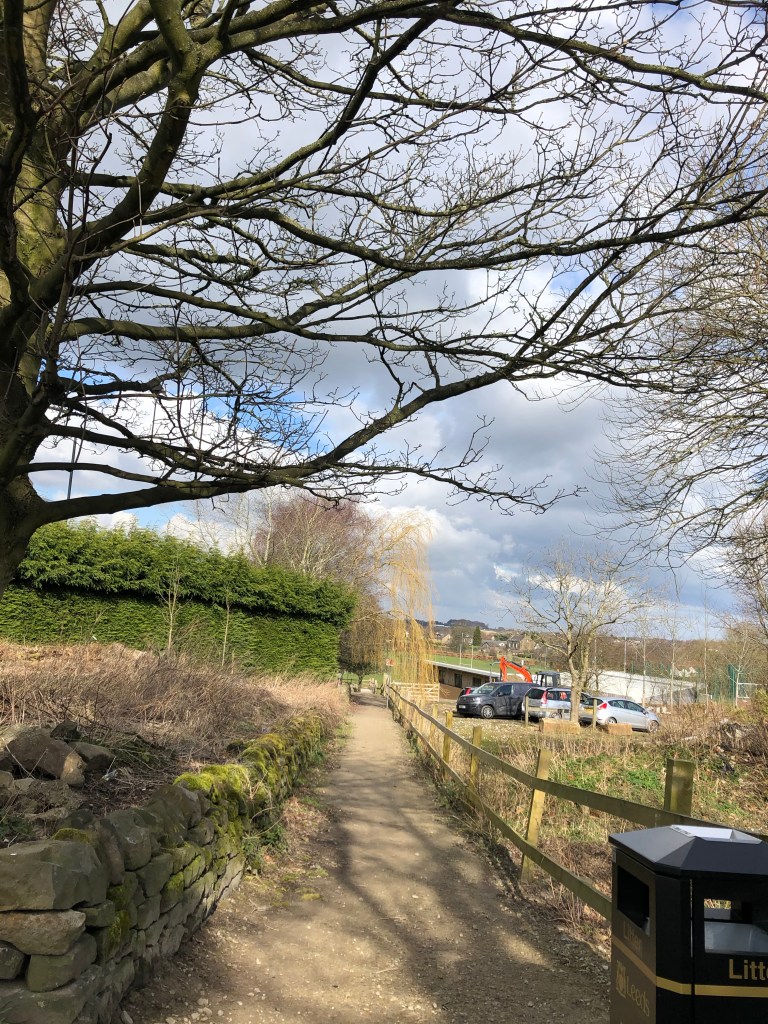
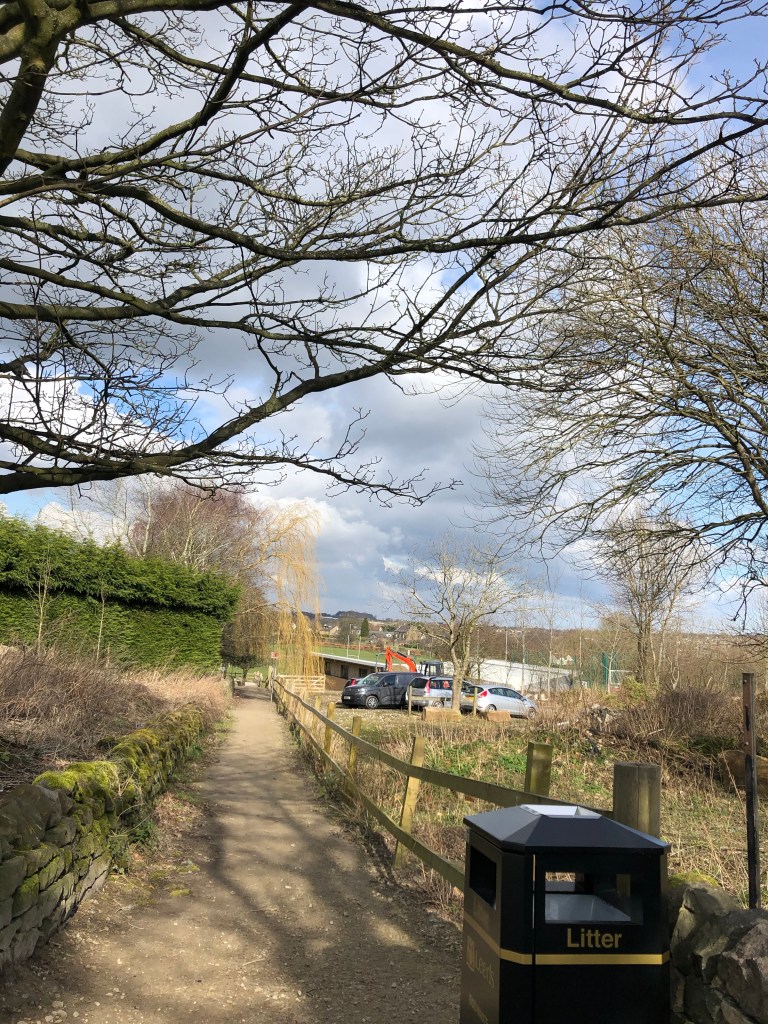
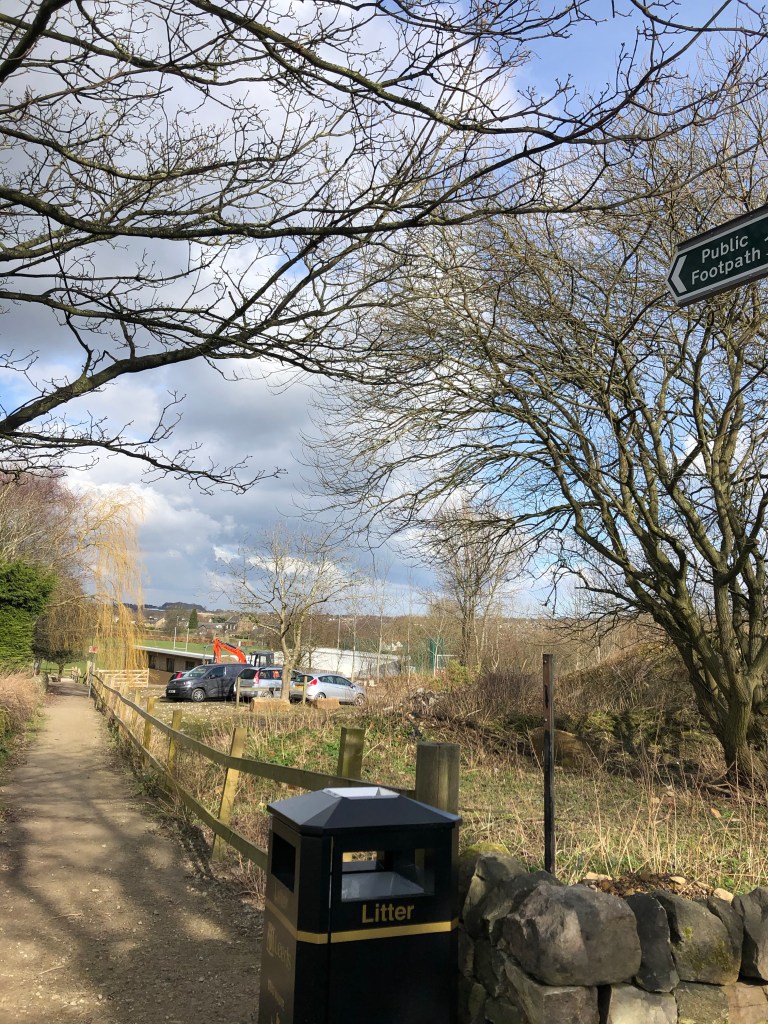
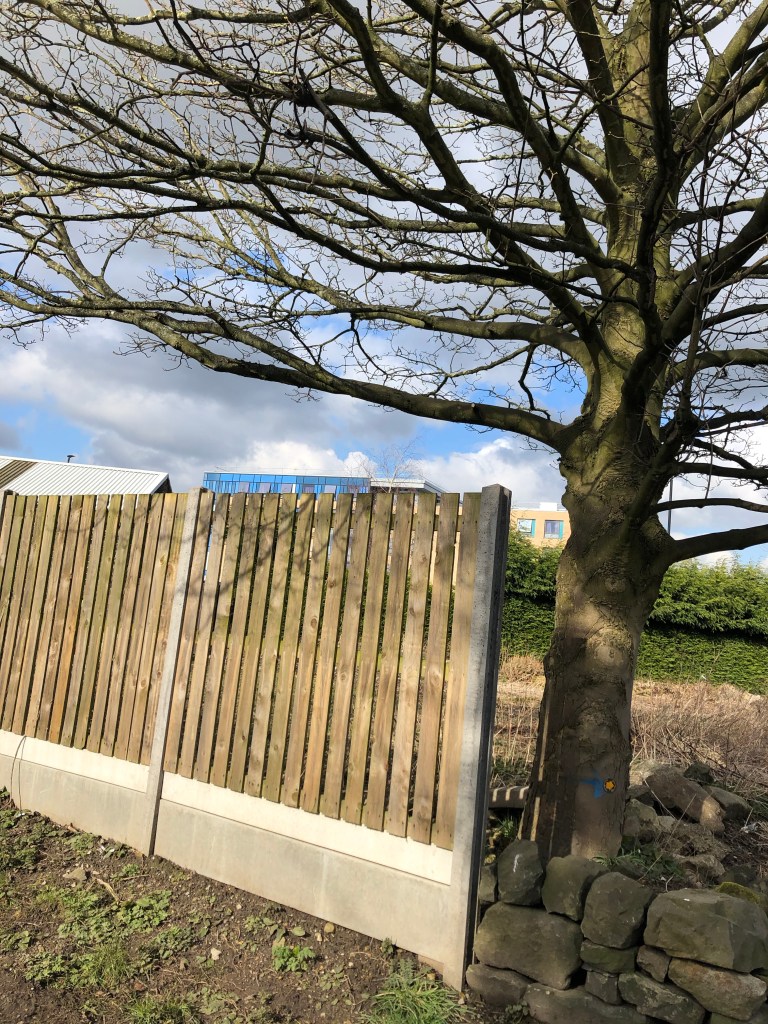
- The first part of this task required following a map and going on an adventure to take some photos outdoors. When doing this I went out with my friend so as that we could help each other navigate where it was that we was going.
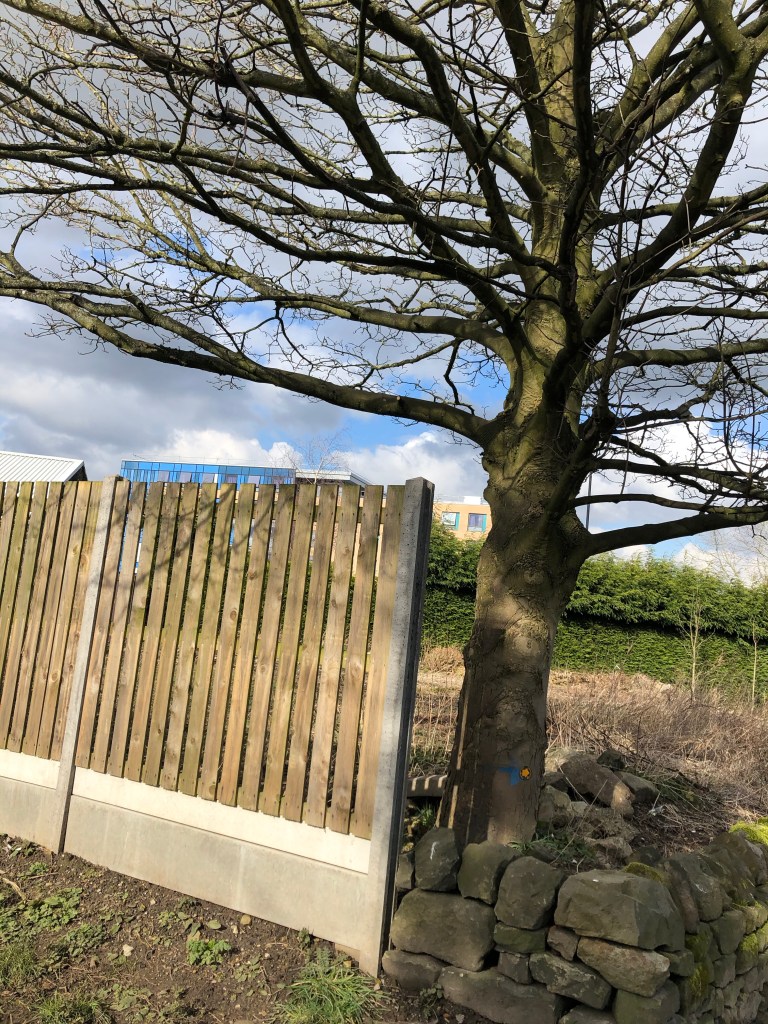
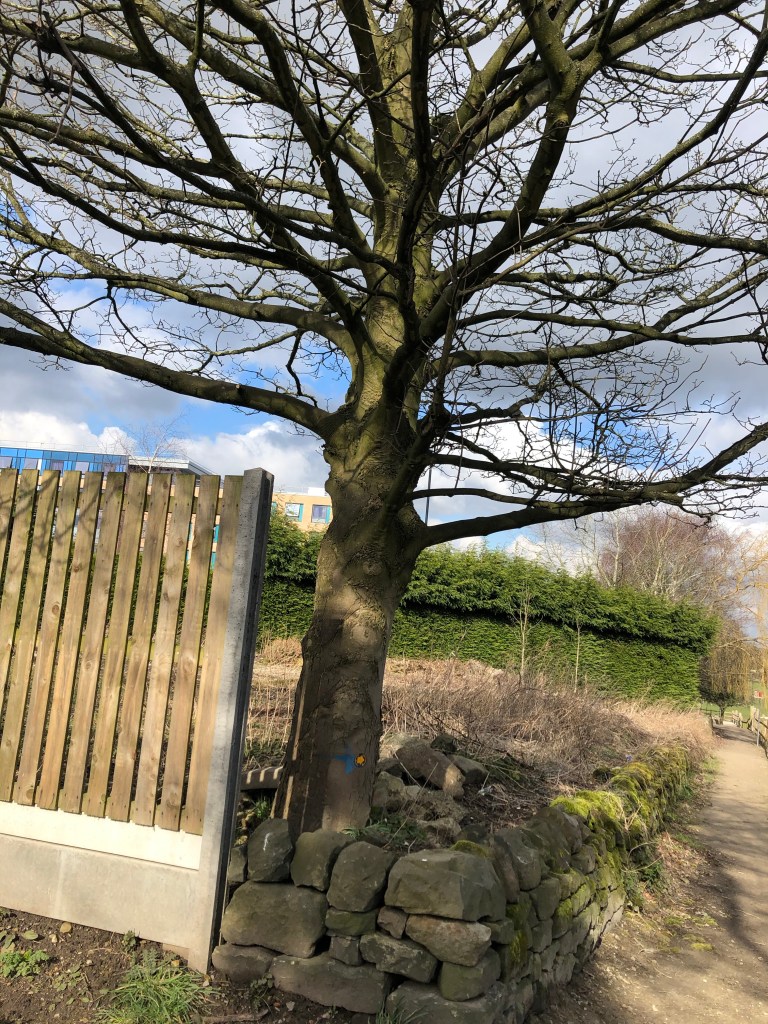
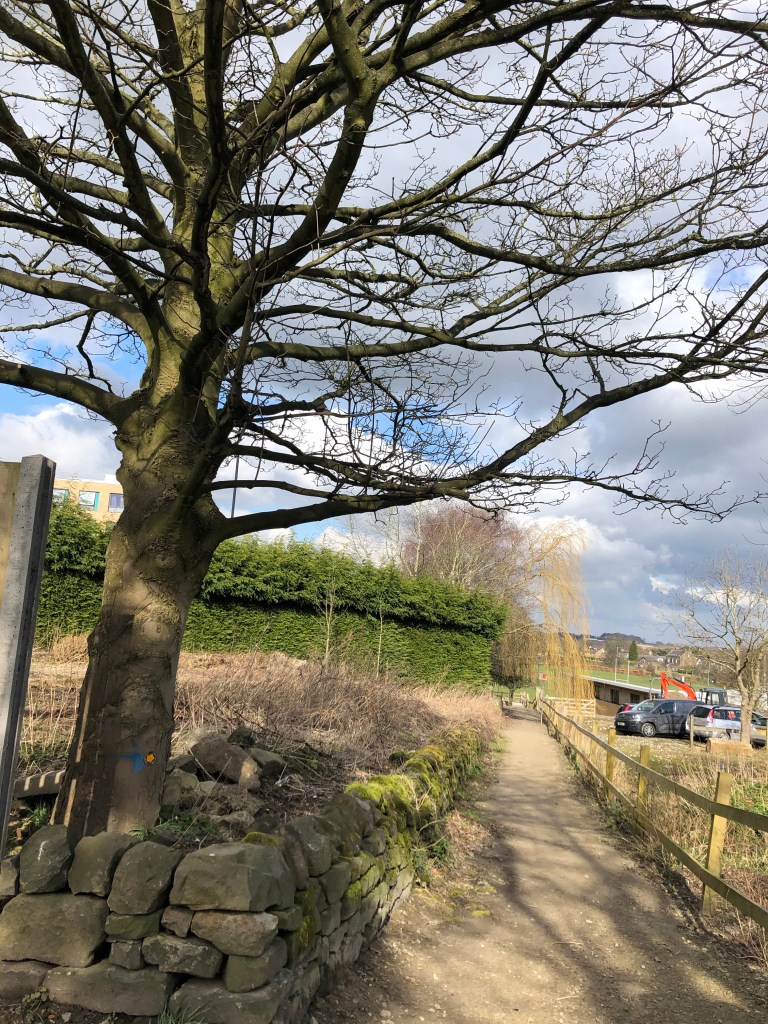
- When we reached each landmark signposted on the map we used the cameras on our phone to take pictures, to be able to do the panorama later on you have to make sure you take multiple photos of the location; start by angling your camera to the left and keep clicking as you move your camera over to the right (this makes sense later on in the editing process as the ends of each photo should fit together).
Step Two: Create your Panorama!
- The first step in creating your panorama will require you to open Adobe Photoshop and select create new.
- Then go into file, select automate and select photo merge.
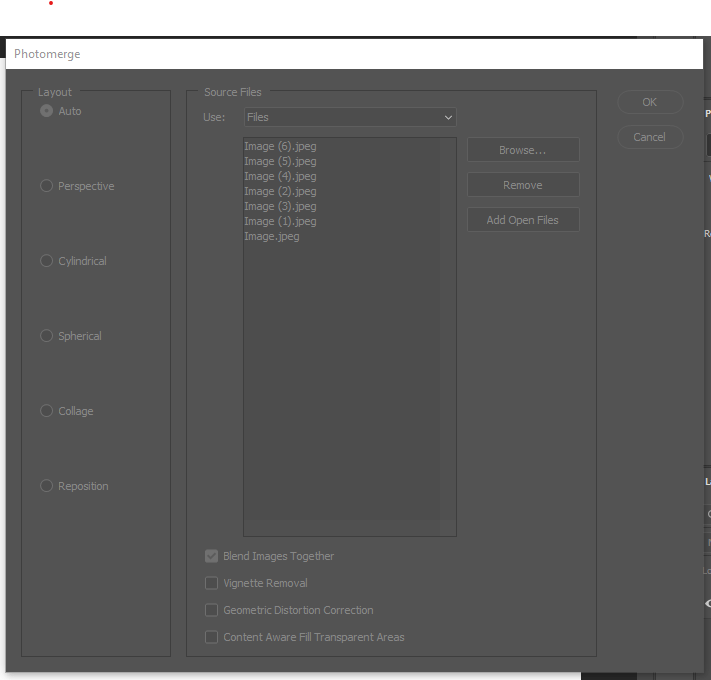
- The screenshot above shows you what will appear when you select photo merge, as you can see I have already selected my images but for you to do that you click on browse and then find the photos on your computer that you want to use.
- Once you have selected the photos make sure you tick the box that says ‘blend images together’.
- Notice to the left there are six different options, you can choose any of these as all it does is change the shape of your panorama.
- I chose to go for the cylindrical option.
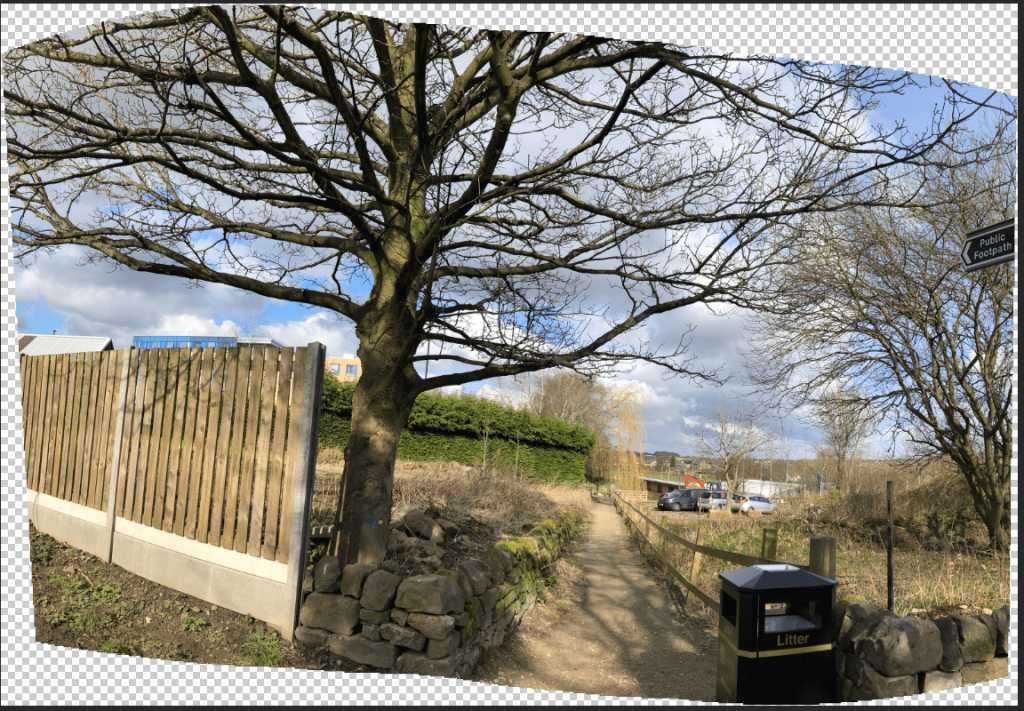
- Pictured above is how my panorama came out looking but I wanted to tidy it up and make it look neater.
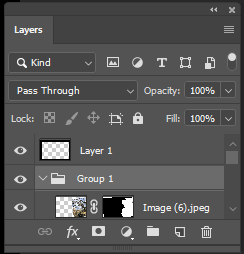
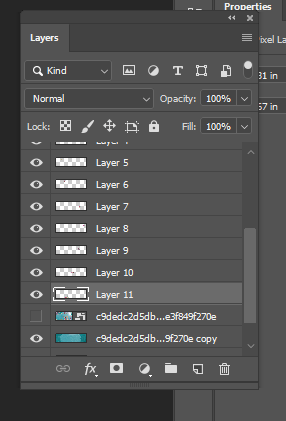
- The first thing that I did to make it neater was I put all of the individual layers into a group together , to do this simply select the button that looks like a file where all of your layers are (as shown in the screenshot below).
- Then you want to bring up some grid horizontal and vertical lines so you can use them as a guide for levelling out the panorama.
- Next, underneath the edit toolbar you will find the ‘free transform’ option which you should select and then rotate your image to fit the page how you want it to.
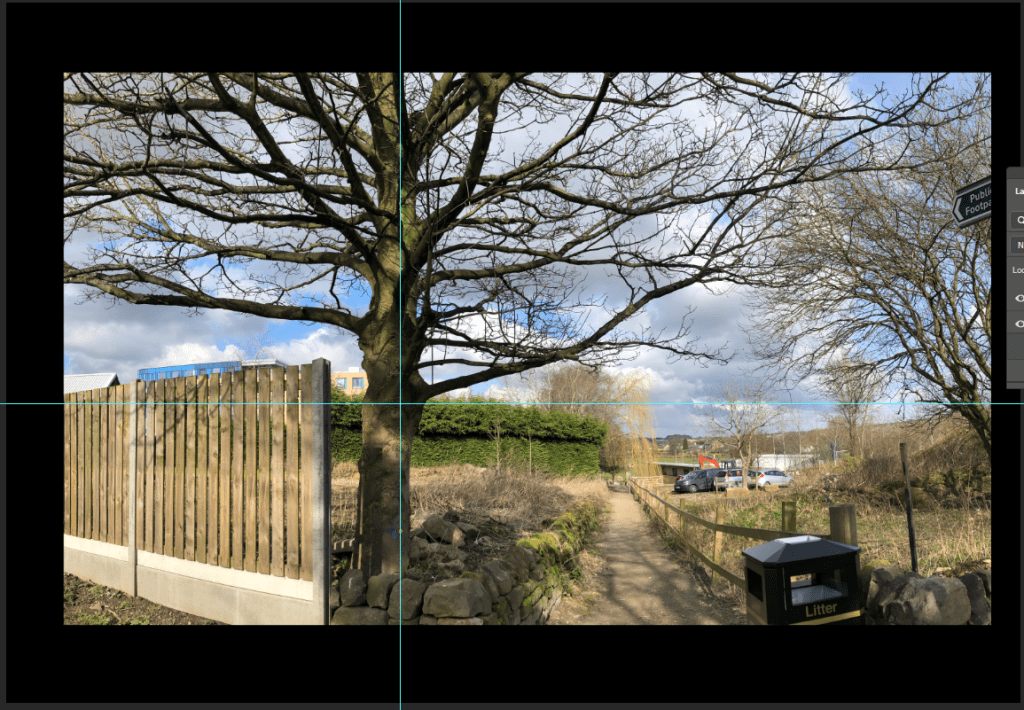
- Finally, highlight the image , click ‘select’ and ‘inverse’ then choose the option ‘make it black’. This creates a frame around your panorama and makes it more aesthetically pleasing to look at – my finished panorama with the frame is pictured below!






 Shantelle-Ellyse Creative Media